AI Dog Dancing Generator User Guide
AI Dog Dancing Generator enables real-time motion control of pet posture and expressions from a reference image, using natural raw datasets for optimal video experience.
You can choose any video from a library for motion or video reference, and the generated video will deliver natural performance with precise control, turning your pet photo into a lively dancing video.
Perfect Synchronized Full-body Motions
Motion Reference
Dance motion reference video with human-style movements
Image Reference
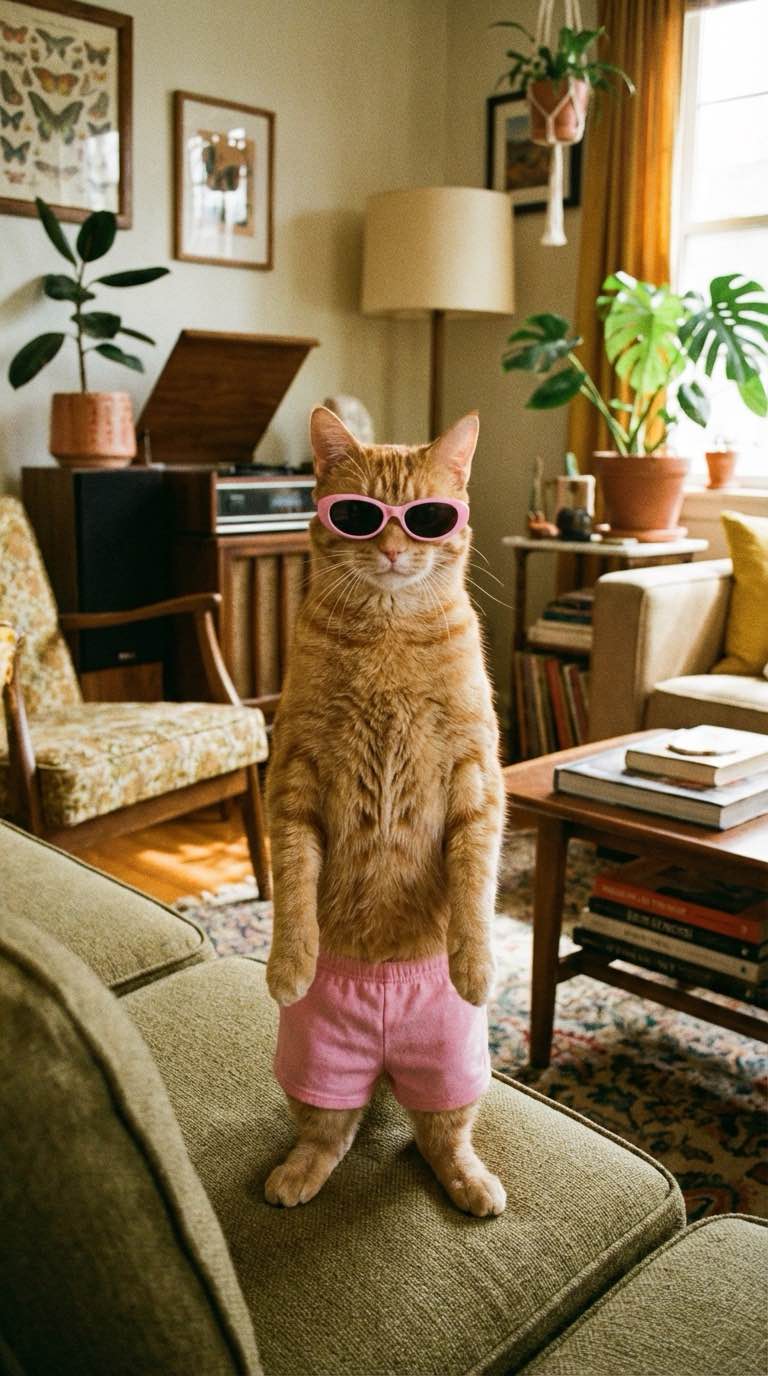
Pet photo reference for dancing video generation
Output
Pet performing synchronized dance motions
Masterful Performance of Complex Motions
Motion Reference
Complex dance motion reference with spinning movements
Image Reference
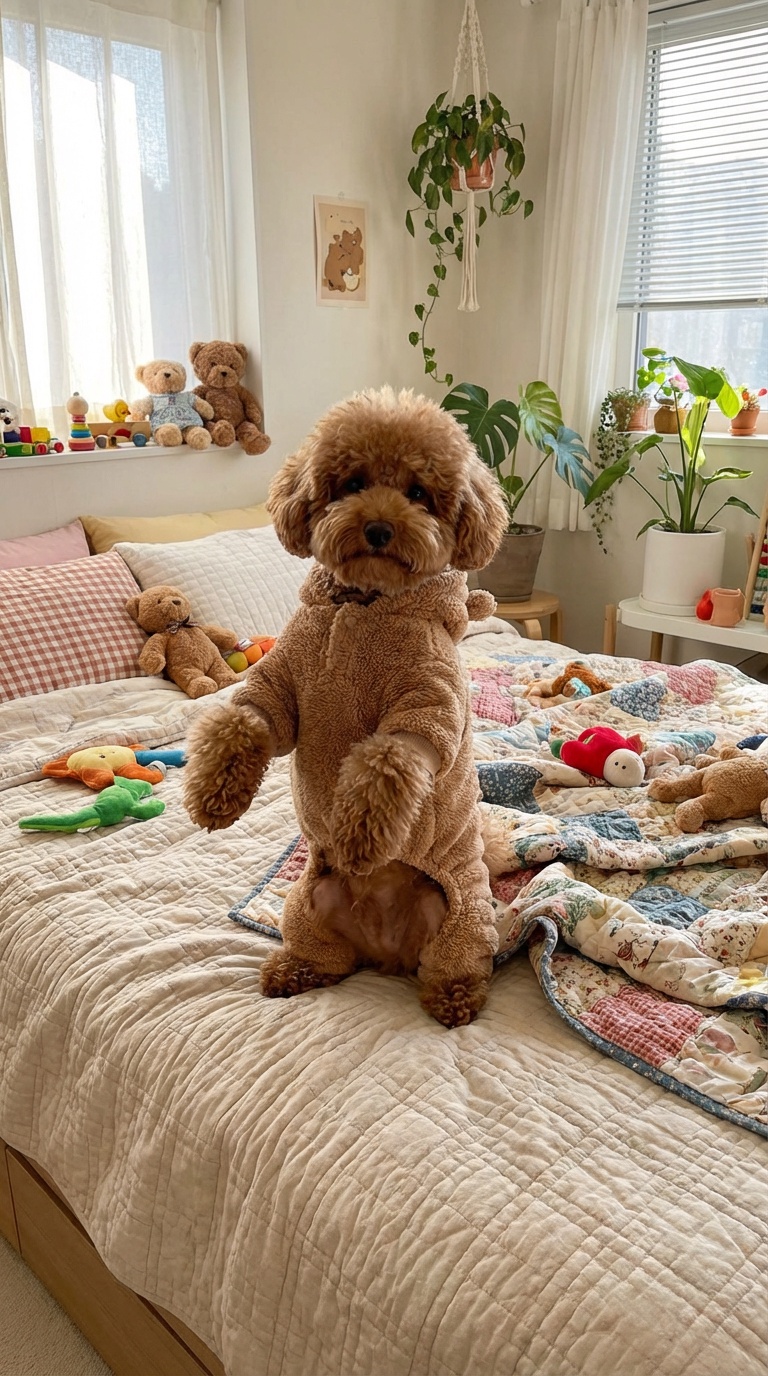
Pet photo ready for complex motion transfer
Output
Pet performing complex spinning dance motion
Precision to Hand Performances
Motion Reference
Hand gesture reference with heart shape motion
Image Reference
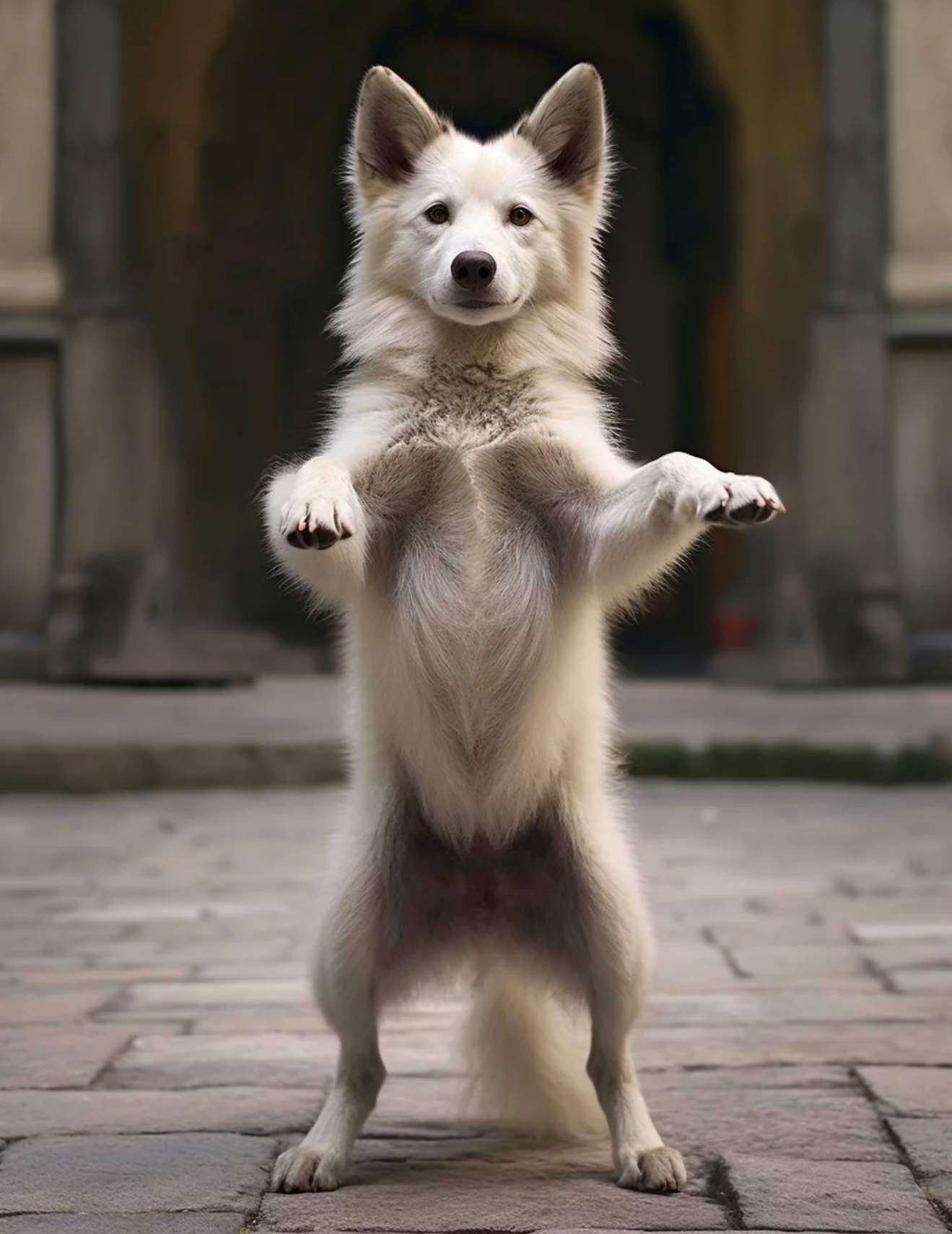
Pet photo for precise hand gesture animation
Output
Pet performing heart gesture with precision
One Shot Action
Motion Reference
Dance pose reference with elegant movements
Image Reference
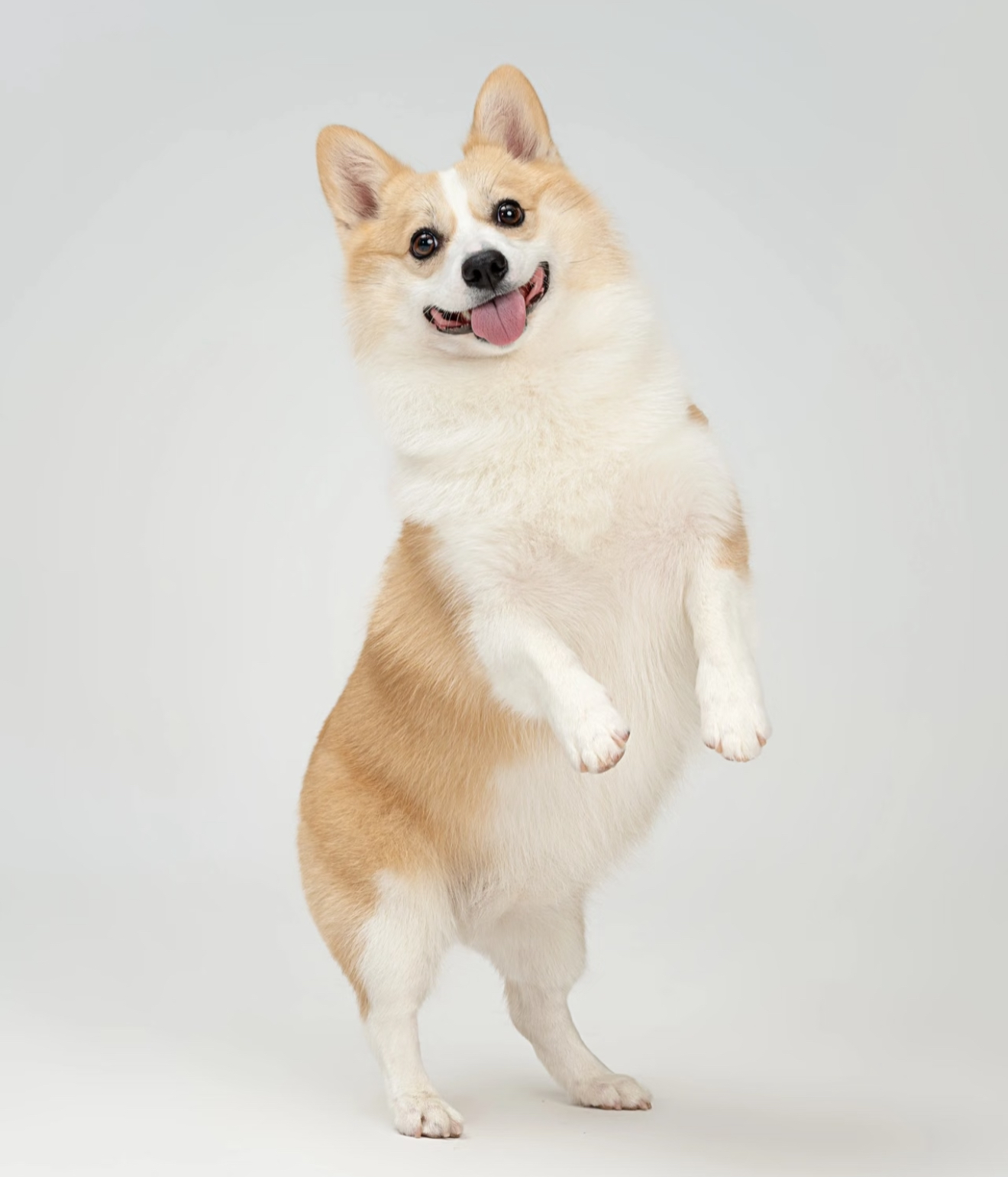
Pet photo ready for pose animation
Output
Pet performing elegant dance pose
Scene Details of Your Command
Motion Reference
Dance motion reference with head-touching gesture
Image Reference
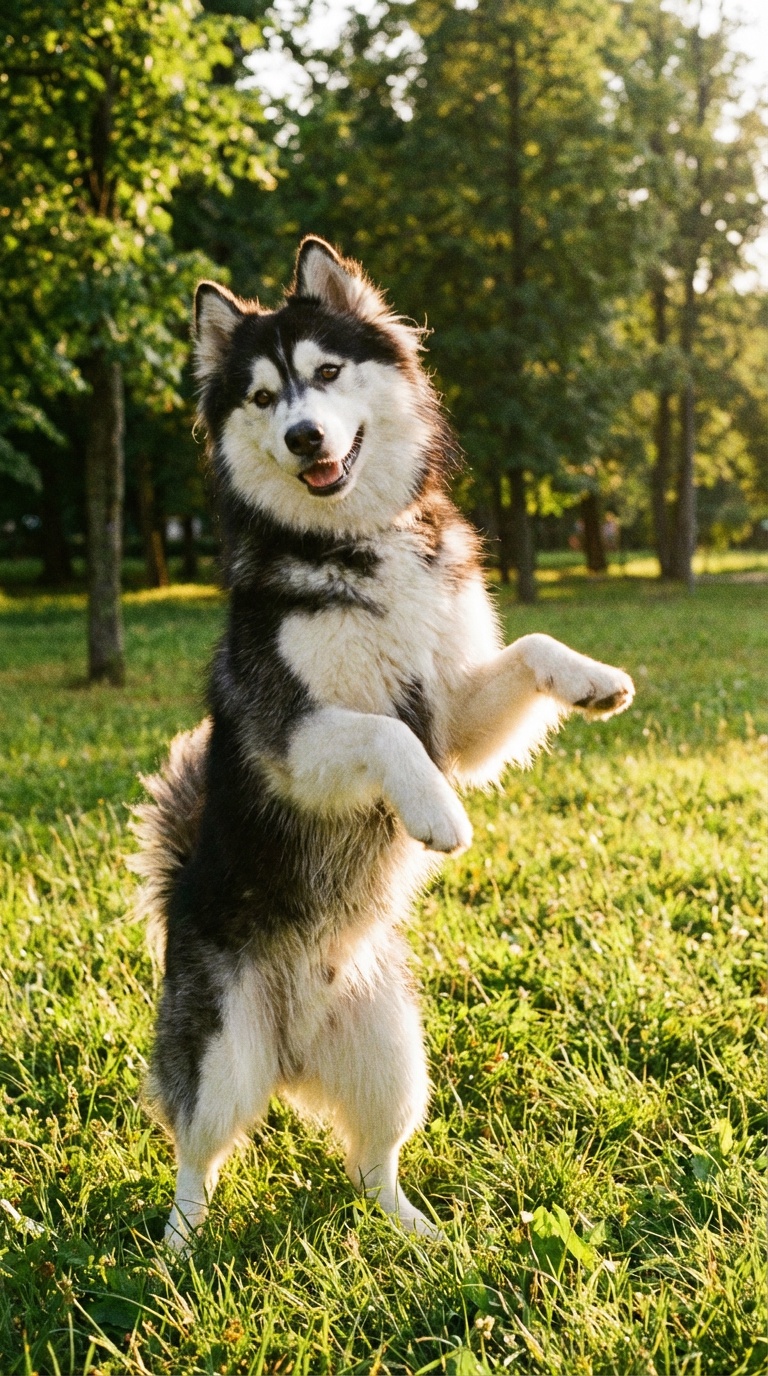
Pet photo for gesture animation
Output
Pet performing head-touching dance motion
Prompt: "A pet performing a dance with expressive movements."
How to Use AI Dog Dancing Generator
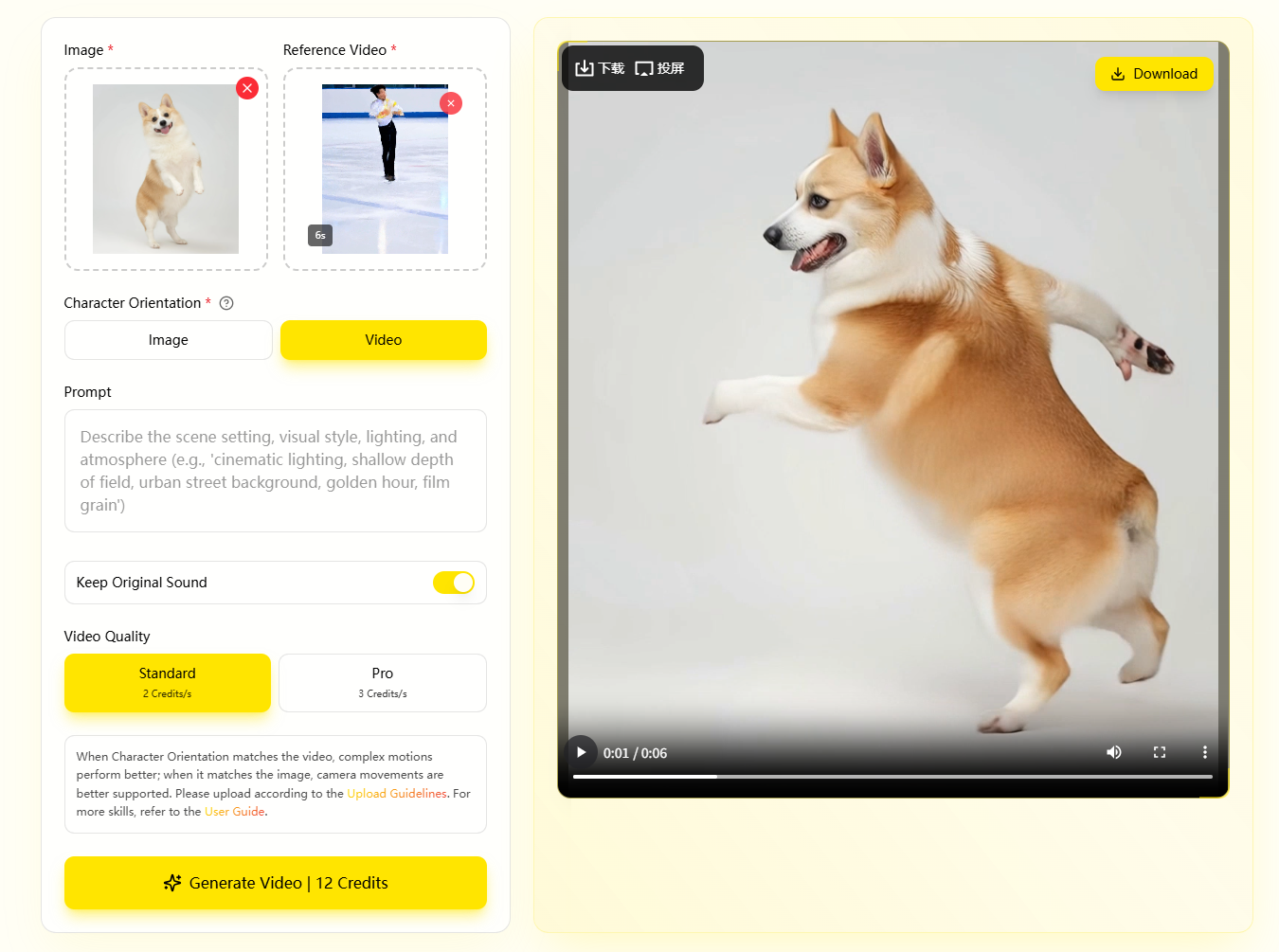
- Add video of character actions to mimic; you can upload video from local resources or choose from the Motion Library.
- Add the character image, ensuring the proportions match those in the video for optimal results.
- By default, the video will be generated through "Character Orientation Matches Video". You can select "Character Orientation Matches Image" which supports camera movement.
- Enter the prompt to control background elements and other information, and the motion-controlled video will be generated.
How to Achieve the Desired Output
- Ensure character in image is ready to move: Recommend full-body or half-body.
- Use a clear video for motion reference: No noise, full-body movement.
- For large motion, ensure enough space in image reference: Leave enough space for the action.
Half-Body
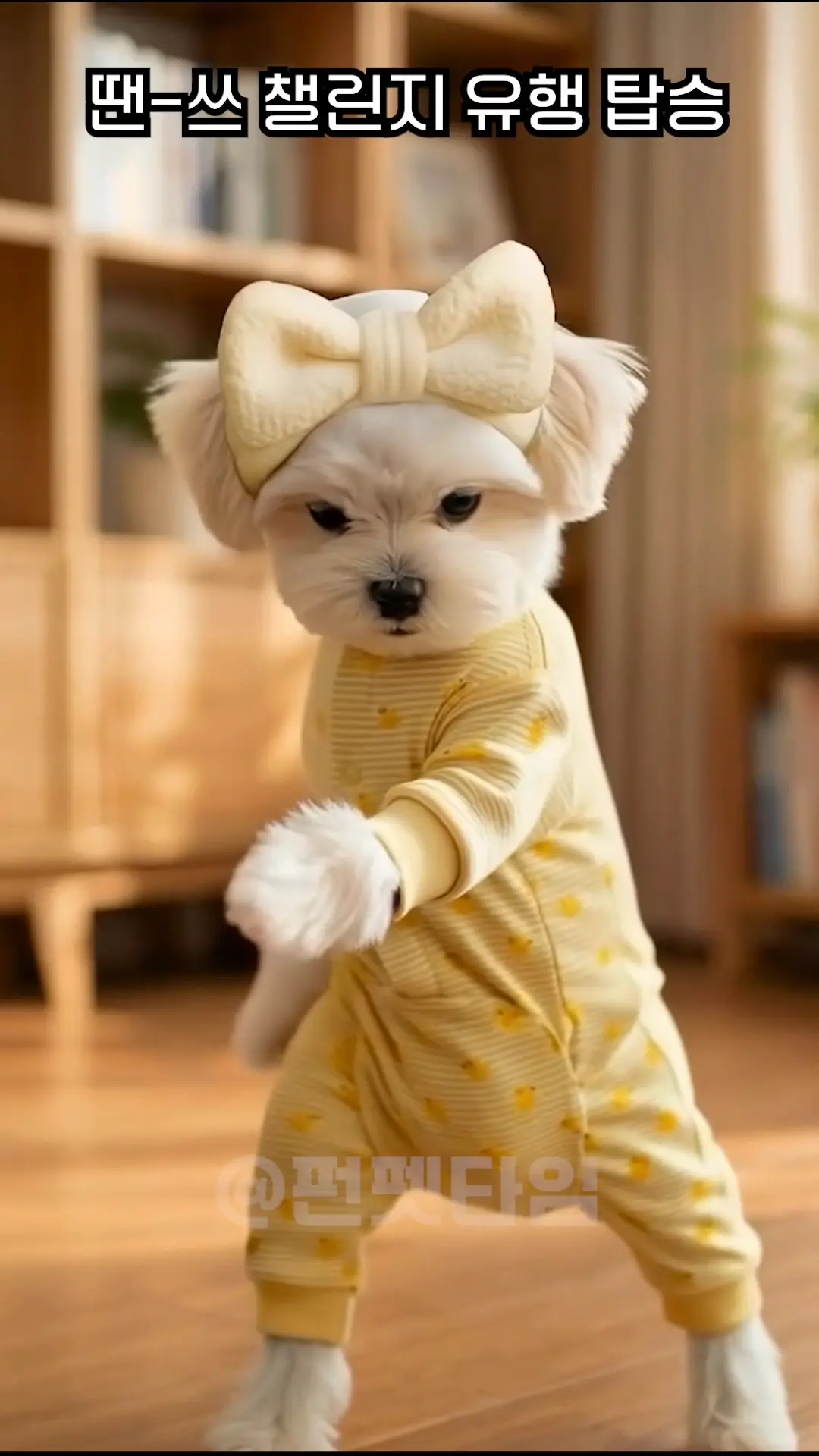
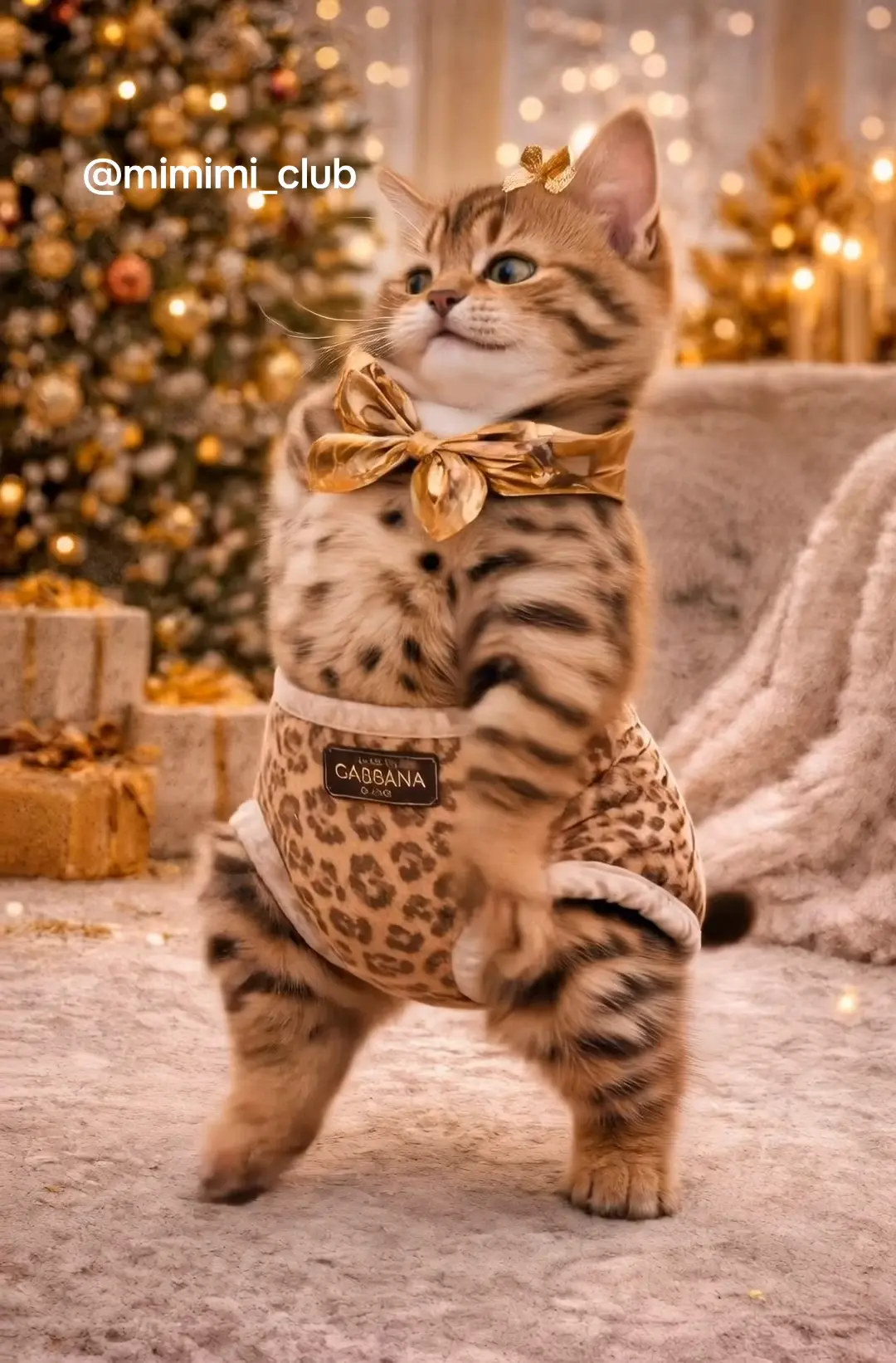
Full-Body
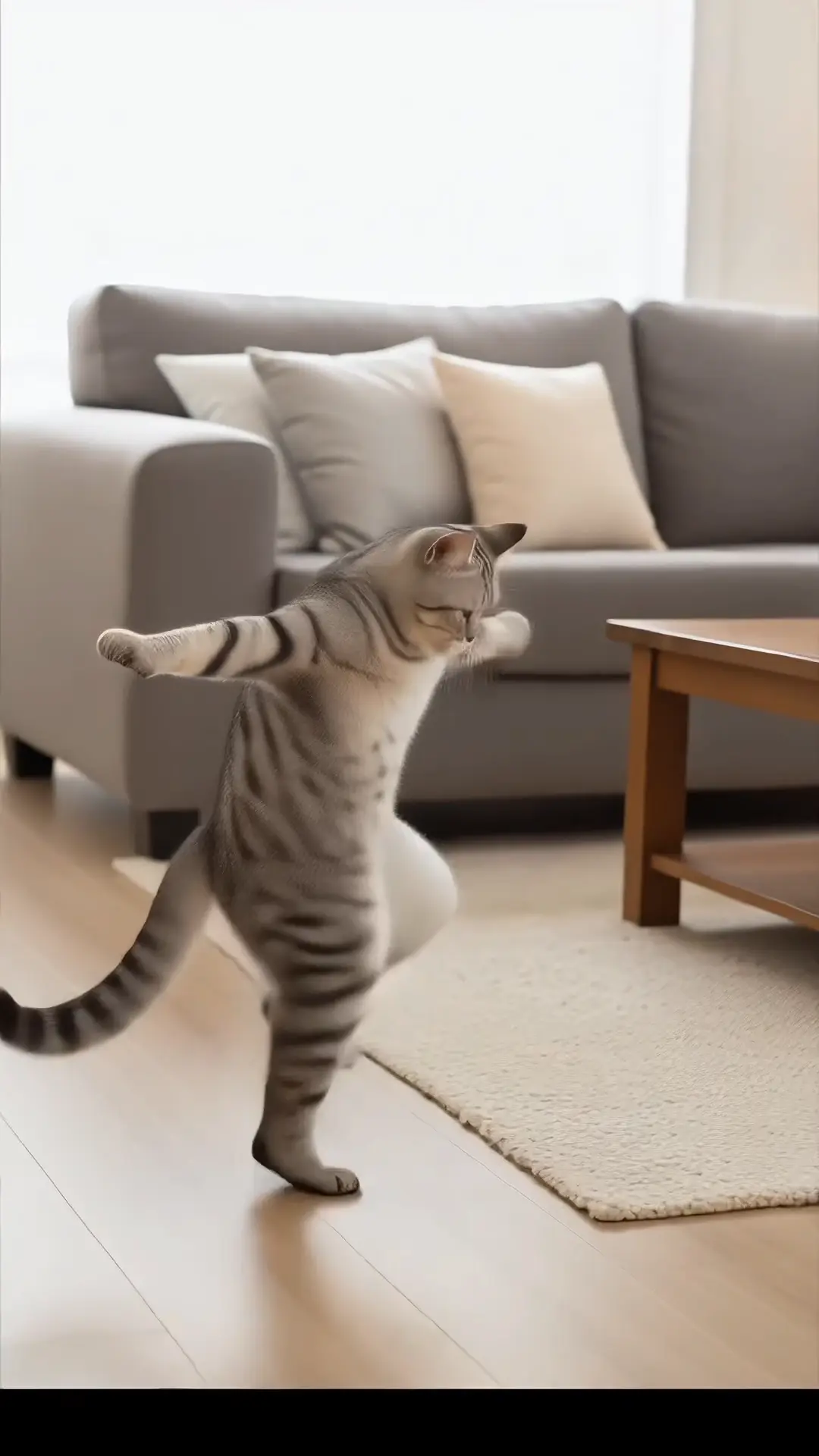
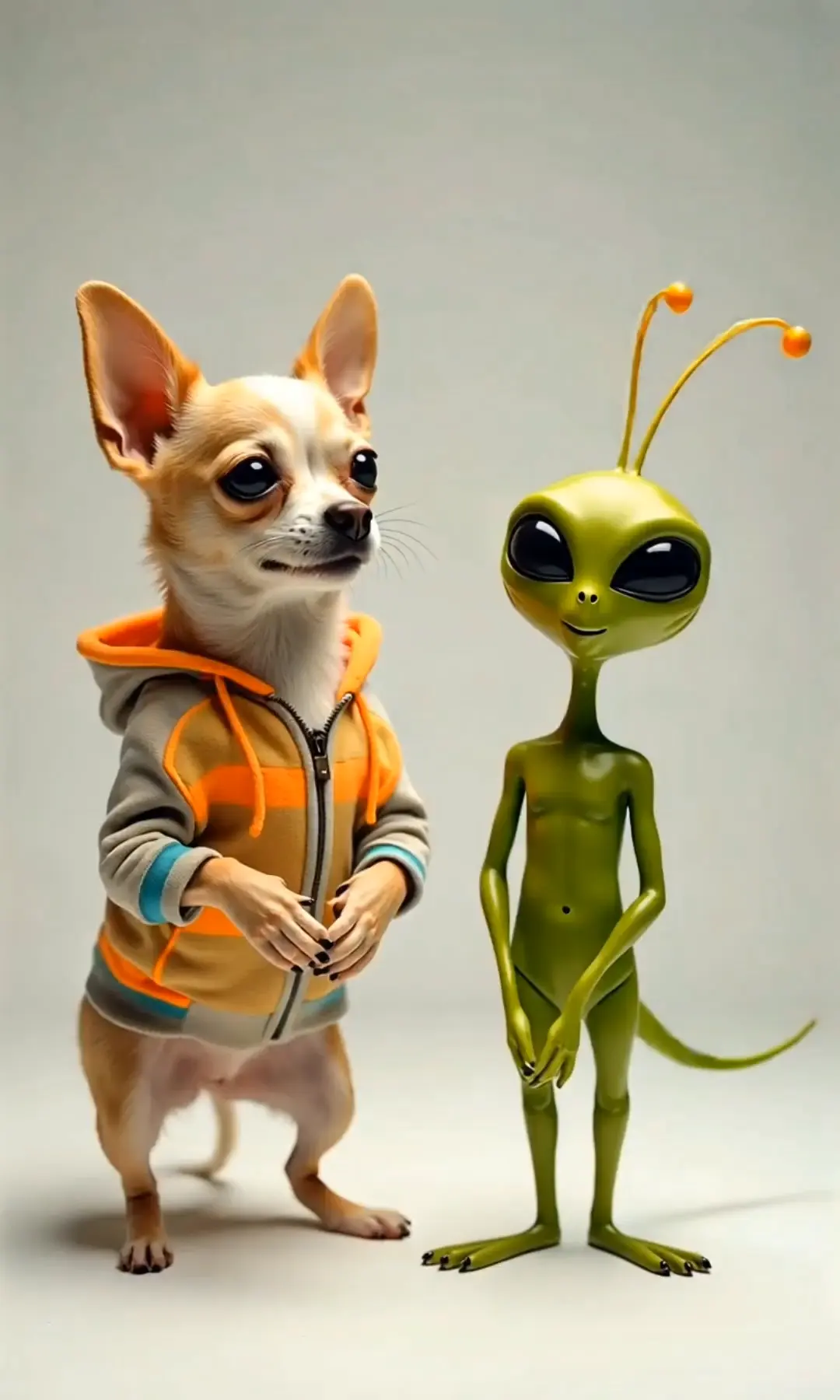
Motion Reference
Half-Body
Full-Body
Character Orientation
- System defaults to generated image 'Character Orientation (Human Pose)' for consistency.
- Option to 'Align' Motion Reference and Image Reference for character orientation to follow image reference.
- If 'Single Character Model' and full-body motion with same character, only a small portion of the frame will be used.
- Avoid hands and camera movement in motion reference.
- Avoid heavily blurred, shaky, sudden, and fast-paced motion.
- Motion range must be 3s-5s, max 30s-60s.
- Generated video duration 1-30 seconds, matching selected video.